Quick Start Guide
Ready to start recording? Here's how to get set up in 5 easy steps:
- Choose your starting gear: Start with one Mevo Start camera (~$450) and a tablet ($300-500 range)
- Download the app: Install Mevo Multicam on Android or iOS
- Position your camera: Place near 1st or 3rd base line, 8-12 feet high for wide game view
- Test your setup: Connect camera to tablet and verify video feed
- Start recording: Use the app to begin capturing your first game
Pro tip: Add a second camera behind home plate for close-up pitch analysis as you get comfortable.
Site Contents
- Core Gear (Basic Setup) - Cameras, tablets, and essential equipment
- Advanced Gear - Zoom cameras and routers for professional setups
- Mounting & Power Accessories - Everything you need to keep cameras secure and charged
- Mevo Multicam App - How to control multiple cameras
- Going Live with GameChanger - Live streaming setup
- Detailed Setup & How-To - Step-by-step instructions
- Camera Settings & Best Practices - Technical tips for great video
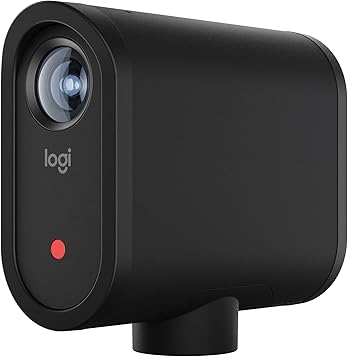
Logitech Mevo Start (Single Unit)
Single Mevo Start camera for basic streaming and recording. Perfect for starting out with one camera angle. Read our full Mevo Start review →
Buy Now on Amazon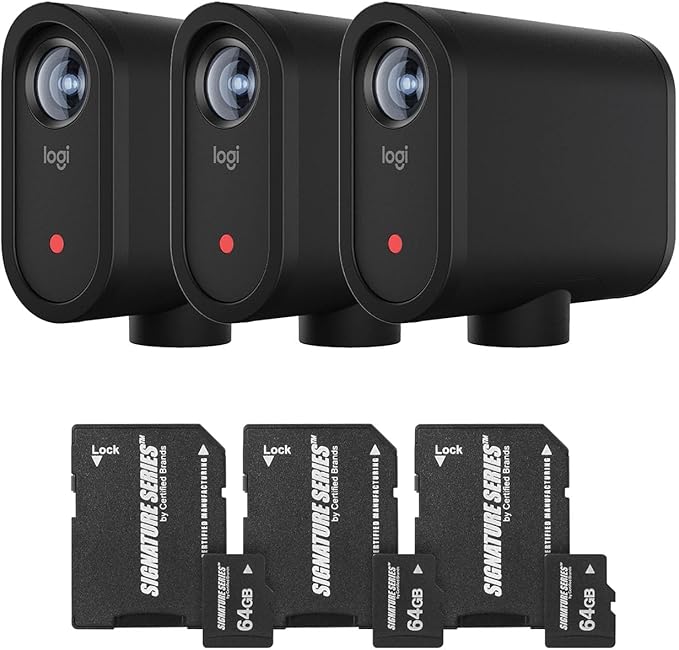
Mevo Start 3-Pack with SD Cards (Complete Setup)
Complete multi-camera solution with three Mevo Start cameras and 64GB SD cards. Perfect for professional multi-angle coverage: 1st base, 3rd base, and behind home plate.
Buy Now on Amazon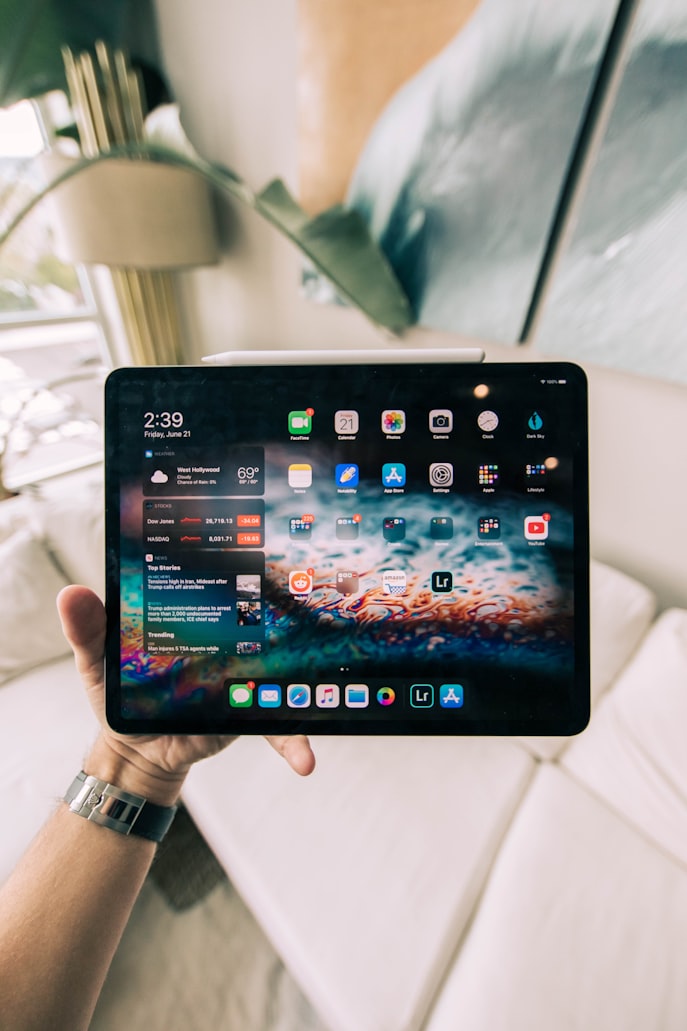
Samsung Tab S9 (OLED)
Bright OLED display is helpful for sunny fields. Use the tablet to run Mevo Multicam and monitor streams.
Buy Now on AmazonPhoto: Roberto Nickson / Unsplash
Advanced Gear
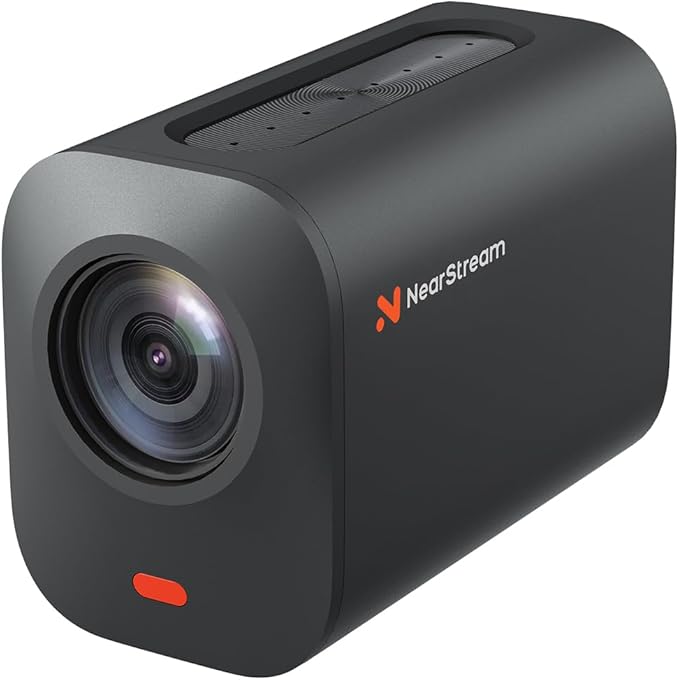
NearStream VM46 4K (10x optical zoom)
Perfect for outfield placement with optical zoom focused on the pitcher and batter for swing analysis.
Buy Now on AmazonPhoto: NearStream / Amazon
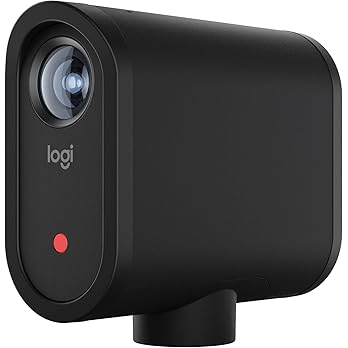
Logitech Mevo Core (Premium Option)
More expensive but easier to use alternative to the NearStream. Professional 4K quality with interchangeable lenses. Mevo Start vs Mevo Core — which is right for you? →
Buy Now on Amazon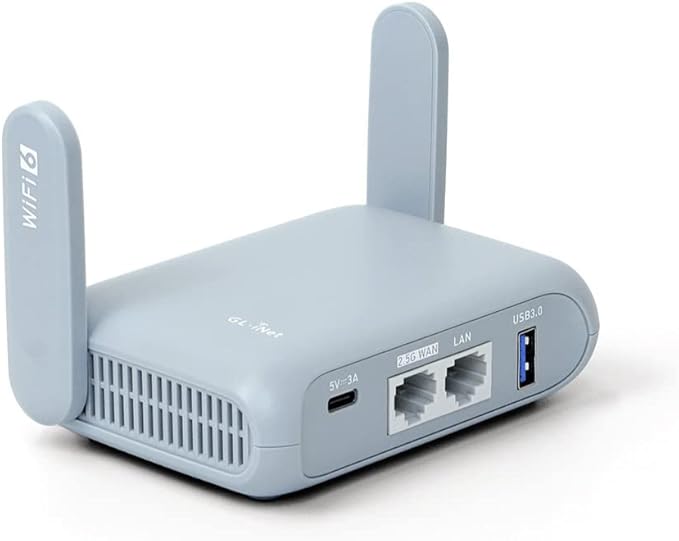
Portable WiFi Router (for softball)
Portable router keeps Mevo cameras connected when you're sitting in the stands. Test range before game day. Full router buying guide →
Buy Now on Amazon Buy Direct from GL.iNet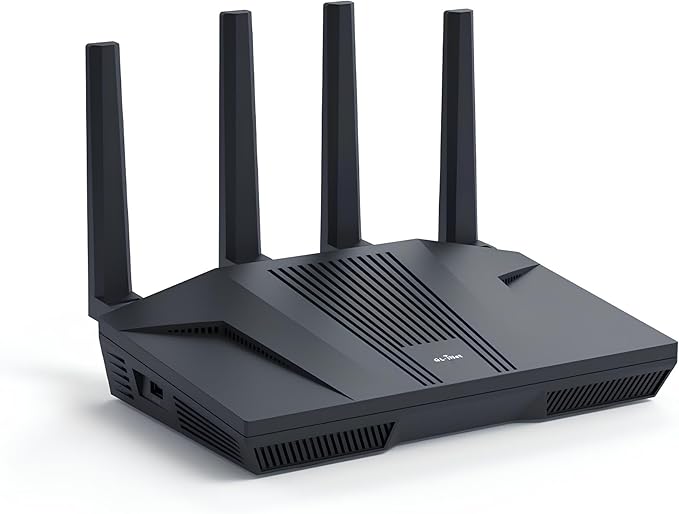
High-Power Router (for baseball)
More powerful router needed for larger baseball fields with greater distances from home to outfield.
Buy Now on Amazon Buy Direct from GL.iNetMounting & Power Accessories
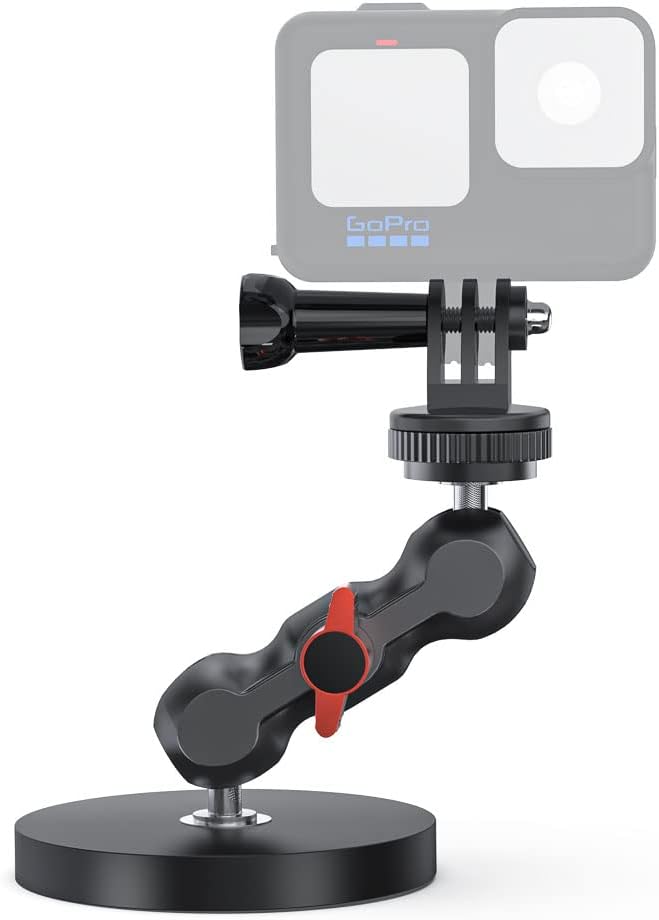
Powerful Magnet Mount
Works for most fence poles. Strong magnetic attachment for secure camera mounting on metal surfaces.
Buy Now on Amazon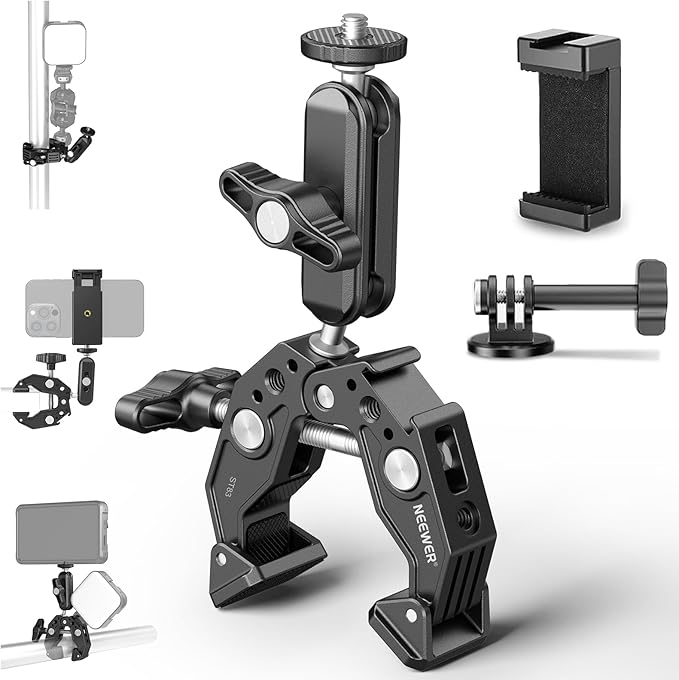
Wide Mouth Clamp Mount
Perfect for fence posts. Adjustable clamp design works with various post sizes and shapes.
Buy Now on Amazon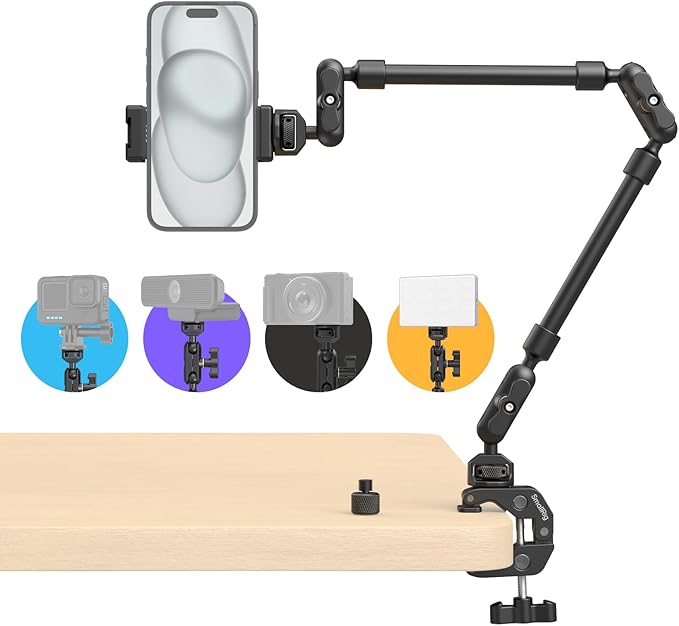
Mounting Arm Extension
For getting cameras over the top of fences. Extends your reach for better camera angles.
Buy Now on Amazon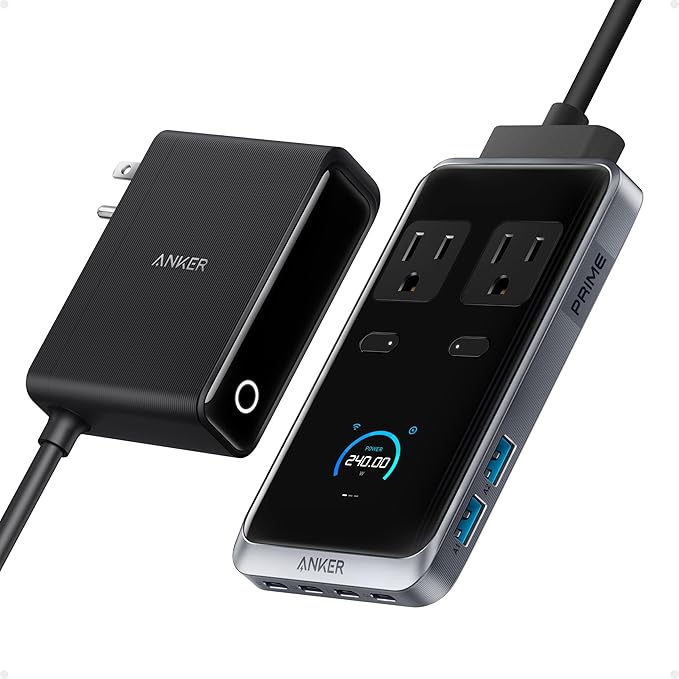
Charging Station
Charge all your devices in one place. Perfect for keeping tablets, cameras, and power banks ready.
Buy Now on Amazon
Power Bank
Portable power for extended recording sessions. Keep your cameras and tablet charged throughout long games.
Buy Now on AmazonMevo Multicam App
Mevo Multicam (Android & iOS) is the recommended app for controlling multiple Mevo cameras. On Android the app is able to continue recording in the background; on iOS background behavior varies by OS version.
Going Live with GameChanger
GameChanger's built-in video feature lets you attach a live stream directly to a game that's being scored in real time. Parents who can't make it to the field open the GameChanger app, tap the game, and watch your stream right alongside the live score, pitch-by-pitch.
How to stream to GameChanger
- Start scoring in GameChanger: The scoring manager opens the GameChanger app and begins official game scoring as normal.
- Enable live video: In the game, tap Video > Go Live. GameChanger will generate an RTMP URL and stream key.
- Enter the stream key in Mevo Multicam: In the app go to Settings > Streaming > Custom RTMP and paste the URL and key from GameChanger.
- Test your upload speed: Run a speed test from your tablet. You need at least 5 Mbps upload for stable 720p; 10 Mbps for 1080p.
- Go live: Tap Start Stream in Mevo Multicam. Parents watching on GameChanger will see the video immediately.
Tip: Always do a 60-second test stream before the first pitch. Streaming failures mid-game are hard to recover from. If your cellular signal is weak at the field, the portable WiFi router (tethered to a phone hotspot) is your best friend.
In 2025, GoPro and GameChanger announced an official integration — GoPro cameras can now stream directly to the GameChanger platform. If you already own a GoPro Hero 13 or newer, this is worth exploring as an alternative to the Mevo workflow, particularly for a single wide-angle outfield camera. That said, Mevo Multicam remains the stronger choice for multi-camera setups because of its built-in switching and tablet control.
Frequently Asked Questions
Can I stream directly to GameChanger? Yes. GameChanger generates an RTMP stream key in-app. Enter it into Mevo Multicam under Custom RTMP, then go live. Parents watching the GameChanger game will see the video alongside the live score.
Can I use this setup for baseball and softball? Yes — adjust camera positions and router power for your field size. Use more powerful routers for larger baseball fields.
Is this beginner-friendly? Absolutely — start with one camera and a tablet, then add cameras as you learn. The Mevo Multicam app walks you through connecting your first camera.
What's the difference between Mevo Start and Mevo Core? Mevo Start is affordable and great for beginners (~$450 each). Mevo Core is professional-grade with interchangeable lenses for much higher quality, but costs significantly more.
Do I need a tablet or can I use my phone? Tablets give you a much better monitoring view and more stable app experience for multi-camera control. A phone works in a pinch for a single camera.
Does GoPro work with GameChanger? Yes — GoPro and GameChanger announced an official integration in 2025. A GoPro Hero 13 or newer can stream directly to GameChanger. Mevo Multicam is still the better choice if you want to switch between multiple camera angles.
How far can cameras be from my tablet? With a good portable router, 200–400 feet is typical. For large baseball fields, use a higher-powered router or position it at mid-field for line-of-sight coverage.
What internet speed do I need? Aim for 5–10 Mbps upload for reliable HD streaming. Check speed with your phone's hotspot from your sideline seat before game day.
Should I use USB tethering or WiFi hotspot? USB tethering is more reliable. Connect your phone to the router with a USB cable, then enable USB Tethering (Android) or Personal Hotspot (iPhone). The router uses your phone's data as its internet source, while all cameras and your tablet connect to the router over WiFi. USB tethering avoids signal dropouts and keeps your phone charged.
How do I sync multiple camera angles in editing? Use a loud clap at the start of recording as a sync marker. Mevo Multicam records all cameras simultaneously, so in-app switching is instant without post-production sync needed.
Detailed Setup & How-To
1. Basic single-camera setup
Mount the camera on a sturdy tripod 8–12 feet high, slightly behind the baseline for a wide, flat perspective. Aim to capture the infield, pitcher's mound, and home plate. Use 4K recording when available — it gives extra detail and lets you crop without losing quality for replays.
2. Multi-camera angles (recommended)
Recommended Camera Positions
- Behind plate - left field coverage (Camera 1): Position behind home plate covering the left 25% of the diamond (third base area). This provides focused coverage of third base plays and stealing.
- Behind plate - right field coverage (Camera 2): Position behind home plate covering the right 75% of the diamond (pitcher, shortstop, second base, first base). This captures most infield plays and base running to first.
- Outfield zoom (Camera 3): Mount the NearStream/zoom camera in the outfield with optical zoom focused on the pitcher and batter. This provides close-up analysis of pitches and swings.
Start/stop cameras close in time or use the Mevo Multicam app to control multiple devices. Keep an eye on battery levels and bring spare batteries or power banks. See sport-specific diagrams: baseball camera placement | softball camera placement.
3. Connectivity & routers
For softball fields (shorter distances) most portable routers work fine. For larger baseball fields, choose a more powerful router or position the router higher for line-of-sight. Always test signal range during practice to avoid surprises on game day. See our router comparison guide →
Tethering your phone to the router via USB
The most reliable way to share your phone's cellular internet with the router — and by extension all your cameras and tablet — is USB tethering. It's faster and more stable than connecting the router to your phone hotspot over WiFi.
Android:
- Connect your phone to the router using a USB-A to USB-C cable.
- On your phone, go to Settings → Connections → Mobile Hotspot and Tethering (exact path varies by manufacturer).
- Enable USB Tethering. The router will detect it within a few seconds and use your phone's data connection for internet.
- Open Mevo Multicam on your tablet — it connects to the router over WiFi and gets internet through your tethered phone.
iPhone:
- Connect your iPhone to the router with a Lightning or USB-C to USB-A cable.
- On your iPhone, go to Settings → Personal Hotspot and make sure it's enabled.
- When prompted, tap Trust on your iPhone to allow the router to access the connection.
- The router will show the phone as its WAN (internet) source. Your tablet connects to the router over WiFi as normal.
Why USB over WiFi hotspot: USB tethering gives the router a dedicated, wired connection to your phone's data — no competing WiFi signals, no reconnect dropouts, and it keeps your phone charged at the same time since USB power flows both ways on most routers.
Alternative: Speedify — Speedify is an app that bonds multiple internet connections (WiFi + cellular) into one faster, more resilient stream. Some parents run it on their tablet to combine the router's WiFi with the tablet's own cellular data. It works, but adds complexity — another subscription, another app to manage, and more potential failure points. USB tethering is simpler and plenty reliable for most setups.
4. Going live with Mevo & GameChanger
Workflow example:
- Power up cameras and router; connect cameras to the router's WiFi network.
- Open Mevo Multicam on your tablet and confirm all cameras appear and stream thumbnails.
- If streaming to GameChanger or another platform, verify destination settings and run a 30–60 second test stream to check bitrate and audio/video sync.
- Monitor upload speed (use a speed test app). Aim for at least 5–10 Mbps upload for stable 720p/1080p streaming.
5. Recording best practices
- Use optical zoom only; digital zoom reduces quality.
- Label and timestamp recordings to simplify reviewing and highlight creation.
- Use wind protection for microphones when audio matters.
Camera Settings, Mounts & Syncing
Recommended camera settings
- Resolution: 4K if available for archival and cropping; 1080p is fine for streaming.
- Frame rate: 60fps for smoother motion (good for replay slow-motion), 30fps for standard streaming.
- Shutter: Use 1/100–1/250 for outdoor sports depending on light and frame rate.
- Exposure: Prefer manual exposure or lock auto-exposure to prevent sudden shifts.
Tripods & mounting
Use a stable tripod rated for your camera weight. Consider a higher tripod (8–12 ft) or a compact tower/truss for outfield cameras. Add sandbags or weights for wind protection. Use safety straps to secure cameras.
Syncing multiple cameras
- Use clap or audible cue at the start of recording to align footage during editing.
- If cameras support NTP or timecode, enable synchronized time settings.
- Record a short sync clip (10–15 seconds) with visible action to help automated syncing tools.
Live streaming checklist
- Charge all batteries and bring spares.
- Test WiFi/router coverage and run a speed test at your seating location.
- Confirm camera thumbnails in Mevo Multicam and verify audio/video.
- Start a private test stream and record locally to confirm reliability.
- Keep a printed quick reference with device passwords and channel keys.